Waffle Chart Maker — Create Waffle Charts Online for Free
Paste your data, pick a template, and export as video or image. Built for market share, survey results, goal completion, and any time a single percentage deserves a proper visual. Free to start.
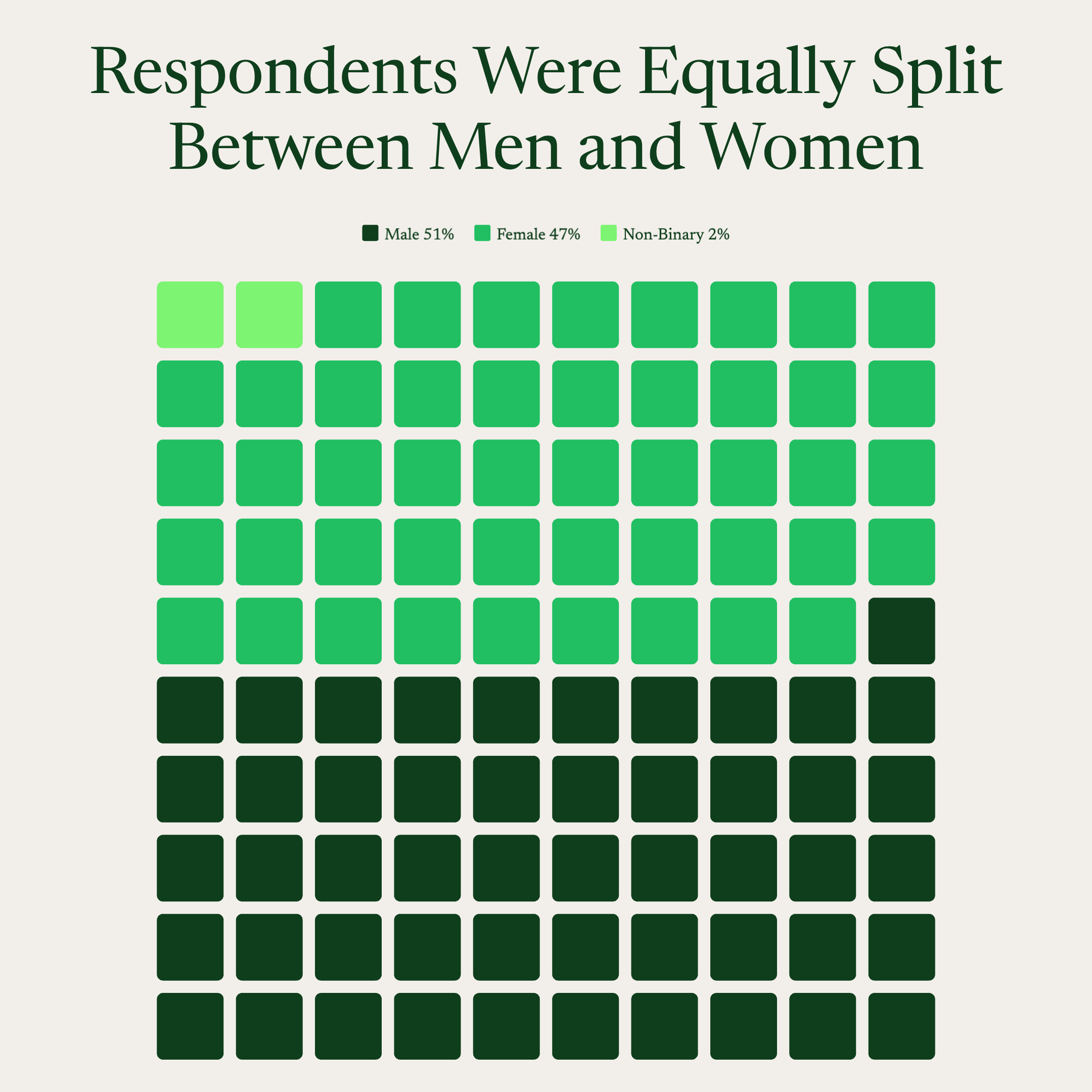
Everything You Need to Create Waffle Charts
Easy Data Input
Paste from Excel or Google Sheets. One row per category — AECharts builds the 10×10 grid automatically. Values don't need to add to 100.
Custom Colors
Each category gets its own cell color. Match your brand palette exactly or use a built-in color scheme.
Video & Image Export
Export as MP4 at 1080p or as a static image. Works in PowerPoint, Google Slides, LinkedIn, and reports.
Labels & Legends
Add percentage labels, category names, and a legend. Control position and styling from the editor.
Real-time Preview
See every change instantly. What you see in the editor is exactly what exports.
No Design Skills Needed
Templates are professionally designed. Paste your data, adjust colors, and export — most users are done in under a minute.
When to Use a Waffle Chart
Waffle charts work best when you have one number worth visualizing — a percentage, a share, a completion rate.
Market Share
72 cells vs 28 cells. The dominant position is immediately obvious — more impactful than a pie slice or a percentage in text.
Survey Results
'68% of respondents agree.' A waffle chart makes a single survey stat stand on its own as a visual in a report or slide.
Goal & Quota Attainment
Sales at 84% of target. The unfilled cells show the gap clearly — more intuitive than a progress bar for a single KPI.
Conversion Rate
Show what percentage of visitors, leads, or trials converted. The grid makes the ratio tangible.
Budget Used
What share of the budget has been spent. Useful in financial updates and board decks where simplicity matters.
Completion Rate
Project, onboarding, or survey completion. A waffle chart communicates the number without needing a label.
Waffle Chart vs Pie Chart: Which Should You Use?
Both show part-to-whole data — but they have different strengths.
Waffle Chart
Best for: 1–3 categories, especially single percentages or binary splits.
Strength: Cells are easy to count — readers perceive the proportion instantly without estimating angles.
Use when: Infographics, dashboards, KPI cards, survey callouts.
Pie Chart
Best for: 3–6 categories where the circular format aids recognition.
Strength: Familiar and compact — works well in tight spaces alongside other charts.
Use when: Budget breakdowns, portfolio allocation, category splits with more than 2 items.
AECharts supports both. Switch between waffle and pie to find the right format for your data.
How to Create a Waffle Chart
Choose a template
Browse waffle chart templates and pick one that matches your style.
Paste your data
Copy from Excel or Google Sheets. One row per category with a value — AECharts builds the grid automatically.
Customize colors and style
Assign a color to each category and match your brand. Adjust fonts and background.
Export as video or image
Export as a 1080p MP4 or static image. Drop into slides, reports, or share directly.
Frequently Asked Questions About Waffle Charts
Create Your Waffle Chart Today
Paste your data, pick a template, and export in under a minute. Free to start — no credit card required.