Treemap Maker — Create Treemaps Online for Free
Built for budget breakdowns, revenue by segment, portfolio composition, and any time you need to show proportions across a two-level hierarchy. Free to start.
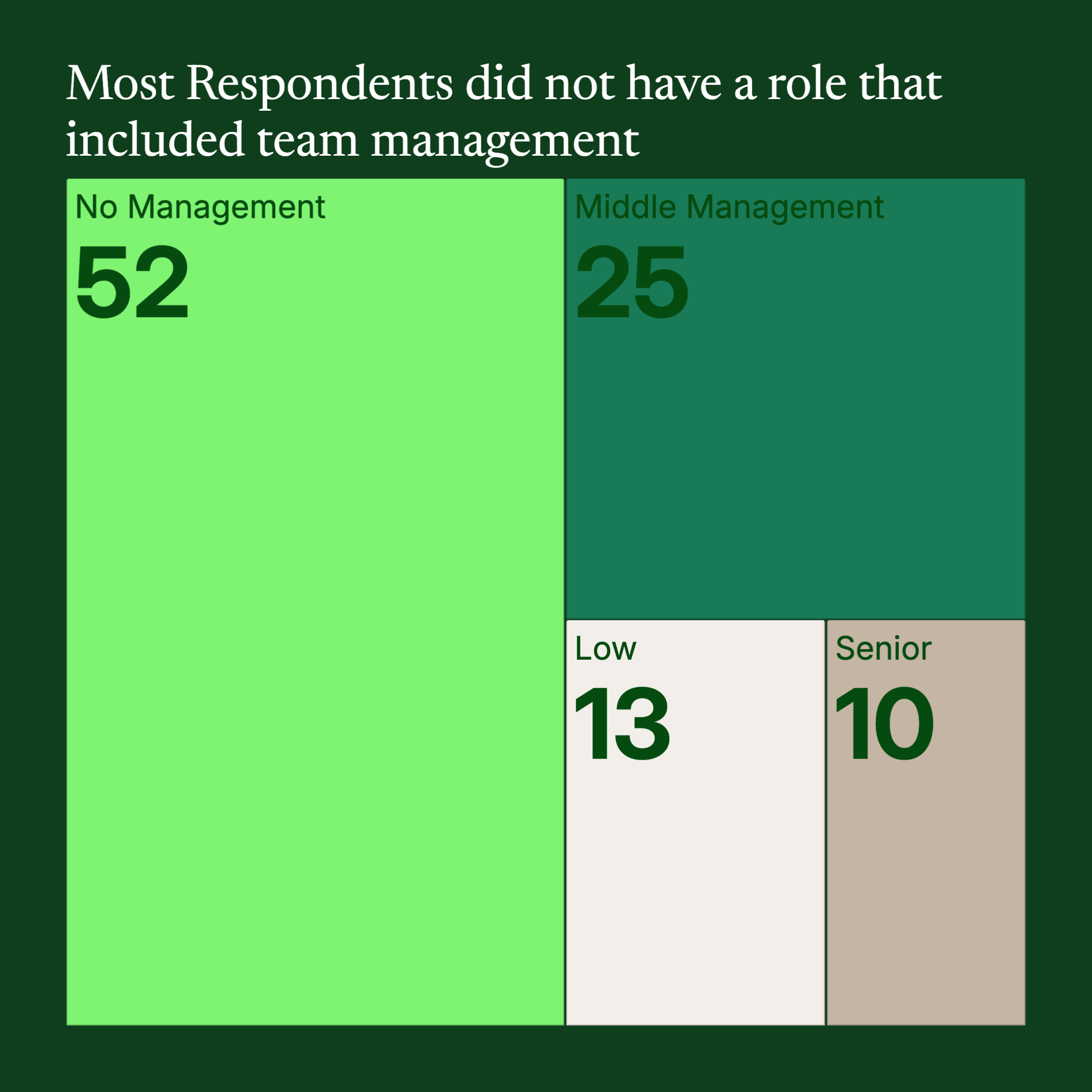
Everything You Need to Create Treemap Charts
Easy Data Input
Paste from Excel or Google Sheets. Three columns: category, label, value — AECharts computes rectangle sizes and arranges the layout automatically.
Two-Level Hierarchy
Group items into color-coded categories. Each group gets its own region on the chart, with items sized by value inside.
Video & Image Export
Export as MP4 at 1080p or as a static image. Works in PowerPoint, Google Slides, LinkedIn, and reports.
Custom Colors
Each category group gets its own color, fully customizable. Match your brand palette or use a built-in color scheme.
Real-time Preview
See every change instantly. What you see in the editor is exactly what exports.
No Design Skills Needed
Templates are professionally designed. Paste your data, adjust colors, and export — most users are done in under a minute.
When to Use a Treemap
Treemaps work best when you have many items across a few groups and want to show both the group totals and the individual item sizes at the same time.
Budget Breakdown
Show department budgets and their line items. The rectangle size makes overspend or underspend immediately obvious without a table.
Revenue by Segment
Group revenue by region or business unit, with individual products or accounts inside. Lets leadership see the full picture in one view.
Portfolio Composition
Show asset allocation by category (equities, bonds, alternatives) and individual holdings. Proportions are instantly readable.
Market Share by Sector
Visualize industry sectors and the companies within them sized by market cap or revenue. Works well in investor presentations.
Product Sales Mix
Group products by category and size them by units sold or revenue. Spots top performers and underperformers at a glance.
Expense Breakdown
Show where money is going across departments and line items. More scannable than a table in a board deck or QBR.
Treemap vs Pie Chart vs Bar Chart
Each chart type has a sweet spot. Here's how to choose.
Treemap
Best for: Many items across a few groups where size conveys meaning.
Strength: Shows hierarchy and proportion in a single view — no need for two separate charts.
Use when: Budget reviews, portfolio breakdowns, revenue by product line.
Pie Chart
Best for: 3–6 top-level categories with no sub-items.
Strength: Familiar and compact — everyone knows how to read a pie chart.
Use when: Simple splits with few categories and no drill-down needed.
Bar Chart
Best for: Comparing exact values across many categories.
Strength: Precise — bar length is easier to compare than rectangle area.
Use when: Ranking items or showing changes over time.
AECharts supports all three. Switch between chart types to find the right format for your data.
How to Create a Treemap Chart
Choose a template
Browse treemap chart templates and pick one that matches your style.
Paste your data
Copy from Excel or Google Sheets. Three columns: category, label, and value — AECharts builds the treemap automatically.
Customize colors and style
Assign a color to each category group and match your brand. Adjust fonts and background.
Export as video or image
Export as a 1080p MP4 or static image. Drop into slides, reports, or share directly.
Frequently Asked Questions
Create Your Treemap Today
Paste your data, pick a template, and export in under a minute. Free to start — no credit card required.